Edpuzzle
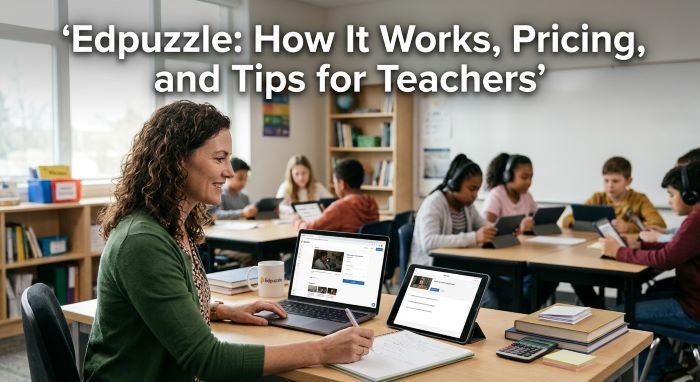
Every teacher knows the problem. You assign a video for homework, and the next day half the class says they watched it. The quiz scores say otherwise. Edpuzzle was built to fix that. It turns a regular video into an interactive lesson with questions that pop up along the way, and it shows you who watched and how they did.
This playbook explains what the tool does, how to set up your first lesson, which features matter most, what’s new, and ten practical ways to use it in your classroom.
The Basics
| Item | Details |
|---|---|
| What it is | An interactive video lesson platform for teachers and students |
| Founded | 2013 |
| Roots | Started in Barcelona, Spain, with a U.S. company called EDpuzzle Inc. |
| Reach | More than 30 million video lessons, used in schools in about 190 countries |
| Ages | Elementary through college |
| Cost | Free basic plan, with paid plans for teachers and schools |
| Works with | Google Classroom, Canvas, Schoology, Microsoft Teams, Moodle, Blackboard, Clever, and more |
| Privacy | Says it complies with FERPA, COPPA, and GDPR |
How It Works in Three Steps
1. Find or Upload a Video
Start with a video from YouTube, Khan Academy, TED, National Geographic, or one you recorded yourself. You can also search the platform’s large library of lessons that other teachers have already built.
2. Make It Interactive
Add questions at key moments. You can use:
- Multiple choice questions that grade themselves
- Open-ended questions for written responses
- Notes that pop up to explain or highlight a point
- Voiceovers where you record your own narration
- Audio notes to add a quick comment in your own voice
You can also trim the video so students only watch the part that matters.
3. Assign and Track
Share the lesson through your LMS or with a class code. Then watch the data come in. You’ll see who watched, how much they watched, which parts they rewatched, and how they answered each question.
Features Teachers Love
Prevent Skipping
Turn this on, and students can’t fast-forward. They have to watch every part, and they have to answer questions before moving on.
Real-Time Data
The gradebook shows scores for each student and each question. If most of the class misses the same question, you know what to reteach.
Rewatch Tracking
You can see which sections students played more than once. That’s often a sign of confusion and a great clue for your next lesson.
Self-Paced and Live Mode
Assign lessons for homework, or use Live Mode in class so the whole group moves through the video together while you see answers in real time.
Student Projects
Students can create their own interactive videos. In 2025, the platform added a “record yourself” option so students can share their ideas on video without speaking in front of the class.
What’s New
In September 2025, the company announced several updates:
| New Feature | What It Does |
|---|---|
| Gamified quizzes | Adds points, timers, and a leaderboard in self-paced or Live Mode |
| Interactive slides | Upload slides and add questions to make them interactive |
| Record yourself | Lets students film responses for projects |
| Premium content | New original lessons and a partnership with The Amoeba Sisters for science |
| Edpuzzle Professional | Free, self-paced training courses for teachers, including one on teaching with AI |
| Pro perks | Multi-language closed captions and high-definition video |
Free vs Paid
The free plan is enough for many teachers to get started, though it limits how many lessons you can store. Paid plans for individual teachers unlock more storage and extra features. Schools and districts can buy plans that cover every teacher, with added admin tools and support. The company asks schools to request a quote for full pricing.
Tip: If you love the tool, ask your principal or tech coordinator about a school plan. It often costs less per teacher than everyone paying on their own.
Privacy and Safety
Student data privacy matters, and schools ask about it first. The company says it follows FERPA, COPPA, and GDPR, which are key privacy laws in the U.S. and Europe. Students join through class codes or school logins, and teachers control who can see their lessons.
10 Ways to Use It in Your Classroom
1. Flip Your Classroom
Assign a video lesson for homework, then spend class time on practice and discussion. The data tells you who’s ready and who needs help before class starts.
2. Check for Understanding
Add a quick question every few minutes. Students stay focused, and you catch confusion early.
3. Support Absent Students
Record your own lesson and share it with students who missed class. They can catch up at their own pace.
4. Differentiate Instruction
Assign different videos to different groups based on their skill level.
5. Pre-Teach Vocabulary
Before a new unit, assign a short video that introduces key words with questions to check understanding.
6. Build Test Review
Create review videos with practice questions that mirror the test.
7. Use Station Rotation
Set up one station where students watch an interactive video while you work with a small group.
8. Teach Media Literacy
Have students watch a news clip and answer questions about bias, sources, and evidence.
9. Let Students Teach
Assign a student project where kids create their own interactive lesson on a topic.
10. Support English Learners
Use closed captions in several languages and add your own voice notes to explain hard words.
Tips for Your First Lesson
- Keep it short. Videos under 10 minutes work best.
- Ask fewer, better questions. Three to five good questions beat fifteen easy ones.
- Mix question types. Use multiple choice for quick checks and open-ended for deeper thinking.
- Add your voice. Students pay more attention when they hear their own teacher.
- Review the data. Look at results before your next class.
- Start with the library. Copy a lesson another teacher made and adjust it.
Getting Students Started
Students don’t need much to begin. They join a class with a code or through your school’s login, then open the lesson on any device with a browser. Many Edpuzzle lessons work well on Chromebooks, laptops, tablets, and phones. Show your class one sample video first so they know how questions pop up and how to answer them.
How It Fits With Your LMS
The platform connects with the tools many schools already use, including Google Classroom, Canvas, Schoology, Microsoft Teams, Moodle, and Blackboard. Edpuzzle grades can sync back, and students can open lessons with one click. That saves time and keeps everything in one place.
Pros and Cons
Pros
- Makes any video interactive
- Shows clear data on who watched and what they learned
- Easy to learn, with setup in minutes
- Works with major LMS platforms
- Free plan for getting started
- Free teacher training courses
Cons
- Free plan has storage limits
- Requires devices and internet
- Some YouTube videos may be blocked by school filters
- Open-ended answers still need hand grading
Common Questions
Is Edpuzzle free? Yes, there’s a free basic plan. Paid plans add storage and features for teachers and schools.
Can students skip ahead? Not if you turn on the prevent skipping setting.
Does it work with Google Classroom? Yes, along with Canvas, Schoology, Microsoft Teams, Moodle, Blackboard, and Clever.
Can I use my own videos? Yes. You can upload your own or record your screen and voice.
Is Edpuzzle safe for students? The company says it complies with FERPA, COPPA, and GDPR.
What subjects is it good for? Any subject that uses video, from science and math to history, languages, and art.
Final Thoughts
Edpuzzle takes something teachers already use, video, and makes it work harder. With questions, voice notes, and real-time data, it turns passive watching into active learning. Whether you’re flipping your classroom, supporting absent students, or just trying to make sure students watch homework videos, it’s a tool worth trying.
Key Takeaways
- Edpuzzle turns any video into an interactive lesson with questions, notes, and voiceovers.
- It was founded in 2013, has roots in Barcelona, and hosts more than 30 million video lessons.
- Teachers can prevent skipping, track rewatches, and see results for every question.
- 2025 updates added gamified quizzes, interactive slides, student “record yourself” projects, and free teacher training.
- It works with Google Classroom, Canvas, Schoology, Microsoft Teams, Moodle, Blackboard, and Clever.
- The free plan has storage limits, and schools can request quotes for full plans.